
- By Admin
- 15 Oct, 2026
- 37 Reading
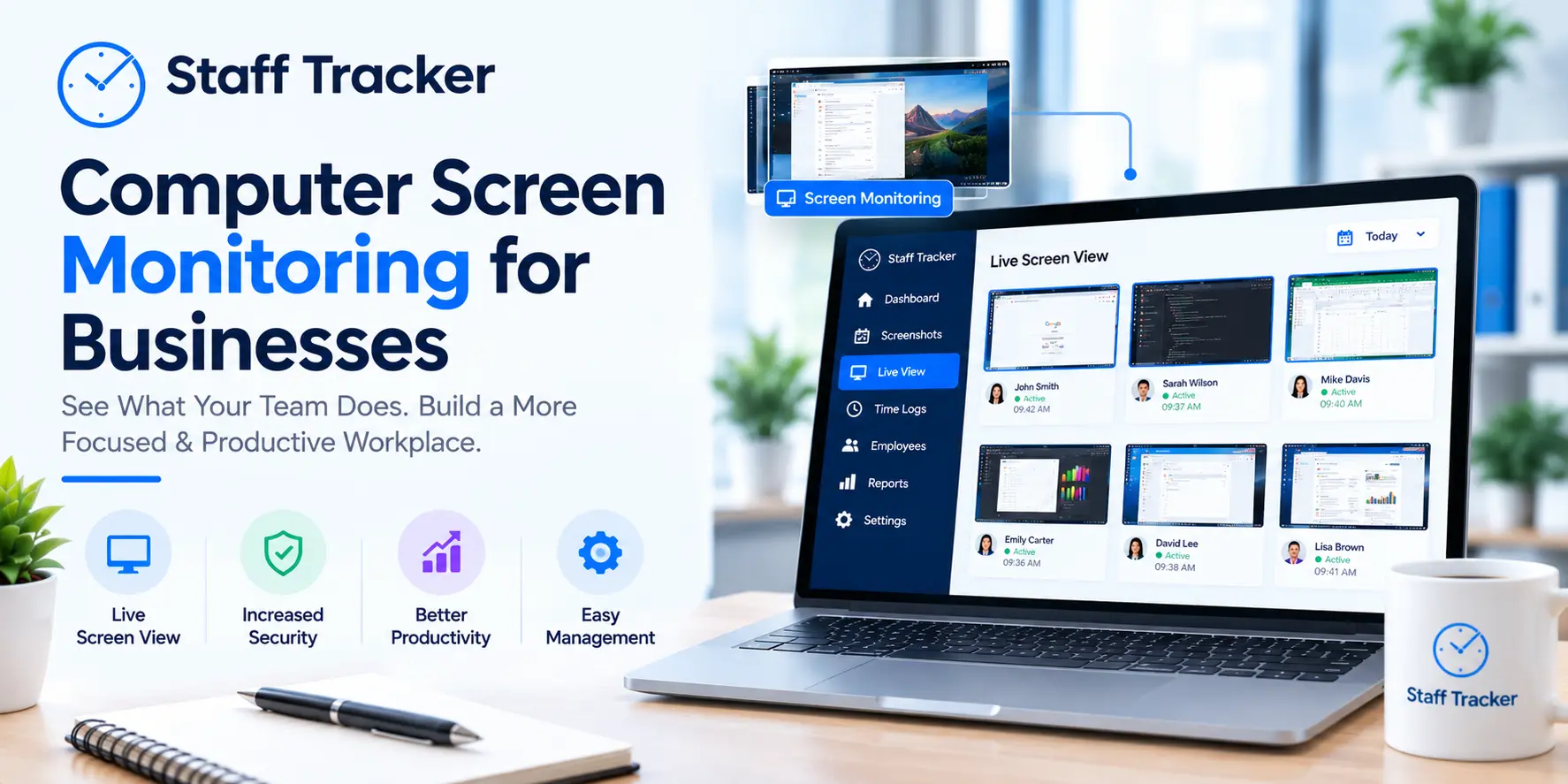
Computer screen monitoring allows businesses to gain insights into how work is conducted on computers by capturing screen activity, application usage, browsing history, and other indicators.
By using the right computer screen monitoring software, managers can review work activity, investigate issues, and make decisions with greater confidence.
For remote workers, office staff, and hybrid teams, the goal should be to gain a better understanding of work to make informed decisions, rather than just watching employees.
Computer screen monitoring should include the right activities, clear workplace rules, and an effective approach to performance evaluation.
What is computer screen monitoring?
Computer screen monitoring is the practice of analyzing or capturing computer work activity to understand what is happening on a computer.
Depending on a monitoring software’s capabilities, this can include periodic screenshots, live viewing of a computer screen, application logs, browser history, and other supported computer activities.
Businesses can use screen monitoring to review work progress, understand how employees are spending working time, investigate issues, and hold workers accountable.
Computer screen monitoring can include several types of work activity:
Screenshot monitoring: Capturing screenshots periodically to see what was on the computer screen
Live screen monitoring: An authorized manager reviews an employee’s work activities if the monitoring software supports it
Application monitoring: Logs of the applications used by a worker to understand what software is being used
Browser monitoring: Logs of websites visited on the monitored computer if the software tracks that activity
Activity and time tracking: Records of active and inactive working time and other supported indicators
Each type of work tracking serves a different role in helping a business to understand how employees are completing work.
A business that wants to see project progress might use periodic screenshots, while a team that investigates a technical issue might need a different set of computer work logs.
How does computer screen monitoring software work?
Computer screen monitoring software usually captures specific activity logs from a monitored computer and provides management with a dashboard overview or access to those records.
The exact process will depend on the product and its setup, but most have a similar general four-step procedure:
Install and configure the monitoring software: An administrator sets up the monitoring application on the relevant work computers and sets up the tracking features based on the business’s requirements.
Collect relevant activity information: The monitoring software gathers the types of computer work logs selected during the configuration phase.
Review the collected information: An authorized manager views the collected information in the management dashboard or requested reports.
Use the findings to improve work processes: The manager uses the findings to make informed decisions about work practices and process improvements.
The crucial point is that the computer monitoring information aims to provide evidence rather than a complete assessment of an employee’s contribution.
Managers should use this information in combination with the work’s quality, responsibilities, deadlines, and other completed work activities.
What are the key features of computer screen monitoring software?
The features of a computer screen monitoring application go beyond just taking screenshots.
Understanding the key features means identifying what a business needs to understand and investigate.
1. Periodic screenshot monitoring
Screenshots make it possible to review the work activities conducted on the computer at the time the image was captured.
They are useful for investigating what a worker was doing and providing context about their daily tasks.
Managers should look for screenshot monitoring features that include timestamps, history, and accessibility to support their needs.
Remember that a screenshot shows the state of a computer at a specific moment and does not capture everything that was done between two images.
2. Application and browser history
Records of applications and websites provide insights into the software workers are using and the work activities they are conducting.
For example, a manager who wants to investigate issues with a reporting process might find that a number of employees are regularly switching between several applications.
This information can support them in determining whether a better process, additional training, or other resources are required to address the issue.
The same goes for browser history – the objective is to identify opportunities for improvement rather than identify unproductive activities.
3. Active, inactive, and break time tracking
Active, inactive, and break time indicators allow managers to review patterns and assess working time and productivity levels, depending on a software’s features.
It is crucial to understand that active time usually refers to recorded work activities such as active typing or mouse movements, which will depend on the software’s definition.
As such, it is possible for an employee to read a document, attend a meeting, or conduct other important activities without generating active time indicators.
Time records should be used as a starting point for investigation and not as a definitive indicator of unproductive time.
4. Attendance and work-hour records
Attendance tracking supports businesses in maintaining work-scheduling records and ensuring that staff adhere to the established practices.
When combined with computer activity logs, attendance information can help a manager understand whether a reported issue reflects a scheduling concern or has other causes.
5. Reports and historical records
Reporting features enable businesses to analyze patterns rather than rely on a single screenshot.
A manager should consider the report period, access to historical records, export capabilities, and the relevance of each report to their responsibilities.
6. Access controls and privacy safeguards
Computer screens often contain customer information, internal documentation, personal data, or other sensitive details.
As such, a business should carefully consider the permissions, data security, retention rules, and privacy features of a monitoring application before deployment.
A responsible monitoring approach should only capture the information relevant to a specific business objective.
What are the benefits of computer screen monitoring?
Computer screen monitoring enables businesses to understand work processes, investigate concerns, and make informed decisions.
Better visibility into remote and hybrid work
Managers cannot always observe day-to-day activities when employees work from home.
Screen and activity records can provide additional information about computer-based activities without involving regular one-on-one meetings.
Improved workflow analysis
Repeated issues, unnecessary application switching, and unclear procedures can be investigated with the right computer work logs.
For example, a manager can review the activity of a support team that constantly switches between customer records and reporting applications and determine whether additional documentation or training is required to address the problem.
More informed coaching and training
Screenshots and application logs can support managers in discussing work practices with employees.
A manager can use an appropriate example to identify a training opportunity, explain expectations, and share best practices.
Computer activity should serve to support informed discussions rather than replace regular manager-employee interactions.
More consistent work reviews
Activity logs can help to supplement work reviews when combined with other completed work activities.
This enables managers to investigate a reported concern rather than make assumptions based on memory or guesswork.
Stronger operational accountability
Clear expectations, documented practices, and consistent reviews can support businesses in establishing accountability, reviewing concerns, and addressing underperformance.
Workers should know what is being monitored and how that information is used, and a responsible monitoring practice should be reasonably limited to specific work activities.
Computer screen monitoring vs. screenshot monitoring vs. activity tracking

Each practice is related but involves different aspects of work monitoring.
Computer screen monitoring includes a range of practices, and a business should identify the features relevant to their needs.
Monitoring method | What it provides | Best suited for |
Computer screen monitoring | A general category that encompasses several methods of monitoring computer work activities | Businesses that need to review computer-based activities. |
Screenshot monitoring | Captured images of the computer screen at regular intervals | Investigating visual work tasks and activities. |
Live screen monitoring | Real-time visuals of a computer, where supported | Situations that require a live visual review |
Application tracking | Logs of the applications used by employees | Understanding software usage and work practices |
Browser history monitoring | Website records, where supported | Reviewing website activity and concerns |
Time and activity tracking | Active and inactive time indicators | Better understanding of working time and activity patterns |
Each method serves a different purpose and cannot be used interchangeably.
A screenshot cannot replace continuous monitoring, and application history will provide different information than time tracking.
A responsible monitoring approach will analyze the relevant set of computer work indicators to address specific concerns.
How can a business select the right computer screen monitoring software?
A business should define its requirements before shortlisting products from the competitive market.
A small team that wants to review computer activity might have different requirements from a mid-sized organization that experienced security concerns.
The following factors should be considered when comparing options:
Determine the business objective: A business should identify what they want to achieve with computer monitoring and ensure that the selected software has the relevant features.
Assess the monitoring method: Ensure that the software has the relevant tracking features such as periodic screenshots or application history.
Evaluate the reporting features: The reports and historical records should meet the reviewer’s requirements and be accessible when needed.
Review the privacy controls: Identify what information is captured, who can see it, how long it is stored, and whether sensitive information is excluded.
Consider the deployment requirements: Determine the operating systems and devices supported by the monitoring software.
Compare the costs and data storage: Ensure that the plan fits the business’s size and that relevant reports and historical records are accessible.
Communicate the policy to employees: Explain the purpose, collected information, and intended use to relevant employees.
A responsible selection process considers the practical requirements rather than focusing on the number of available features.
Computer screen monitoring should have a defined objective, transparent rules, and practical limitations.
Explain the purpose
Employees should understand the reason behind the monitoring initiative and what a manager will use the information for.
Limit the information collected.
Businesses should only capture the information relevant to their objective and avoid excessive data gathering.
Restrict access to the information.
Only appropriate personnel should be able to view the information and use it for its intended purpose.
Establish retention rules
Screenshots and other activity logs should only be stored for as long as they are relevant.
Consider sensitive information
A business should take appropriate measures to protect any confidential documents, customer data, and other information that may appear on a computer screen during monitoring.
Make informed decisions
Productivity and work practices should be reviewed in context rather than basing decisions on one suspicious activity or assumption.
Review the legal requirements.
Employee monitoring laws will vary depending on the location, type of information collected, and other factors.
Ensure transparency
A responsible screen monitoring policy should be reasonably open and honest rather than secretive.
Computer screen monitoring with Staff Tracker
Staff Tracker Offers a range of computer activity monitoring features to help businesses understand employee activities and manage day-to-day operations more effectively.
The product’s listed capabilities include screenshot monitoring, time tracking, attendance management, browser and application history, activity reports, and task management features.
These features can support businesses in incorporating several work-related insights into the employee management process.
For example, a manager who wants to investigate delayed project milestones can use the available screenshot, application, and time tracking features to better understand the worker’s activities, responsibilities, and task completion.
Staff Tracker provides a list of web and desktop application access and export capabilities, and the available features and historical record limits will vary depending on the selected plan.
If your business is considering an employee monitoring solution that offers screenshot monitoring capabilities alongside time and attendance features, you can view Staff Tracker’s capabilities at the following link:
Frequently Asked Questions About Computer Screen Monitoring
What is computer screen monitoring used for?
Computer screen monitoring helps businesses gain insights into how work is conducted on computers.
It can be used for a variety of computer work-related investigations, from identifying areas of improvement to reviewing completed work activities.
Is computer screen monitoring the same as employee monitoring?
No, computer screen monitoring focuses on work activities conducted on a computer.
Employee monitoring is a general term that can encompass attendance, working hours, application and browser usage, and other activities.
Can computer screen monitoring help manage remote employees?
Yes, computer screen activity and attendance logs can provide additional information about an employee’s work activities, especially where regular interactions are limited.
However, this information should supplement a manager’s expectations and performance reviews rather than replace regular one-on-one discussions about work goals.
Do screenshots show everything an employee does?
No, a screenshot represents the computer screen at one moment.
Periodic screenshot monitoring can provide useful information, but it cannot capture everything that a worker does throughout the working day.
Is computer screen monitoring legal?
Employee monitoring laws can vary depending on the location, the type of information gathered, the devices involved, and other factors.
As such, a business should investigate the relevant rules and regulations for their area and conduct themselves accordingly.
What should businesses consider before installing screen monitoring software?
Businesses should identify their requirements, investigate the software’s features, review the security and privacy controls, compare the deployment and cost considerations, and communicate the policy to employees before installation.
Does Staff Tracker offer screenshot monitoring?
Yes, Staff Tracker lists screenshot monitoring as one of the available features, along with time tracking, attendance management, browser and application history, and activity reports.
However, the available features and historical record limits will vary depending on the selected plan.
Written by the Staff Tracker Team
This content was authored by the Staff Tracker team, who have lots of experience managing the workforce as well as tracking time and attendance and employing HR Technology. Staff Tracker creates practical content that speaks to businesses' pain points around optimizing workforce operations and improving productivity.
 16-10-2026