- By Admin
- 05 Oct, 2026
- 52 Reading
Being a remote or hybrid team leader can be difficult, especially if you can't always see how work is progressing throughout the day. Regular check-ins help, but they don't always show how people use their time or where a workflow issue may occur.
Using screen monitoring software provides businesses with screenshots or computer activity overviews, like application, browsing, and work-time reports, that can help them identify workflow problems when necessary.
If you're looking for free screen monitoring software for PC, look at Staff Tracker if you have employee activity monitoring and attendance/work-time requirements.
What Is Screen Monitoring Software?
Depending on the features included in the software, screen monitoring applications can either be used for recording or tracking computer activities.
While some applications may only offer screen recording capabilities, other programs will allow users to capture screenshots, track active time vs. inactive time, access website browsing history, and receive application usage reports.
One example is a manager overseeing a remote customer support team. They may find that certain tasks typically take more time than others, so identifying the appropriate activity history along with completed tasks may assist them in finding a training solution or other process improvement.
Computer activity should not be used as the sole indicator for workflow or productivity improvement. It should be used in combination with completed work, adherence to deadlines, and overall results.
What Features Should You Look For?
While many free screen monitoring tools share similar features, some are geared more towards recording a personal screen, whereas other applications will provide employee monitoring and workforce management reports.
1. Screenshot Monitoring
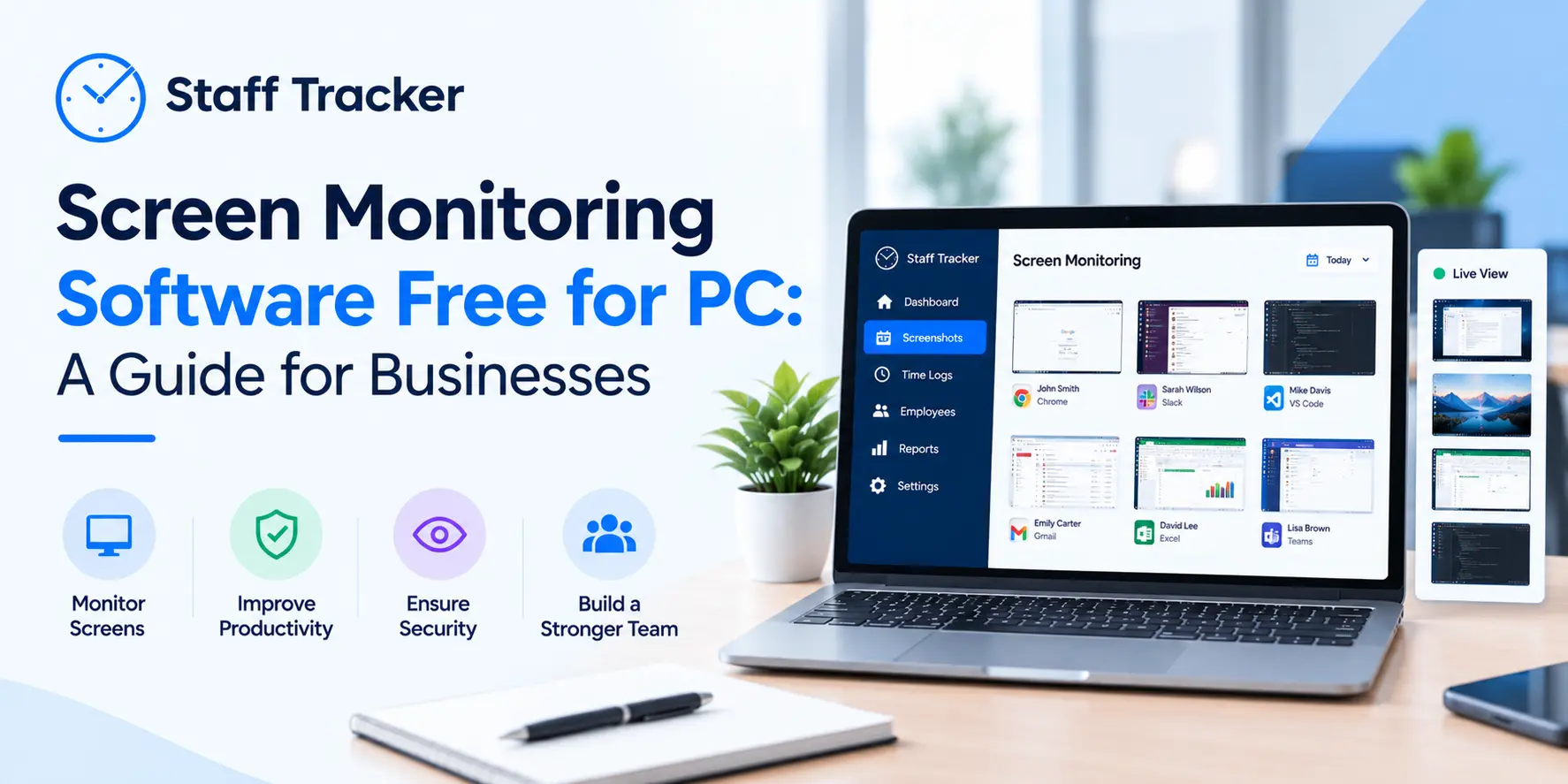
Capturing screenshots provides visual confirmation of computer activities based on the time interval set within the application. These records can be reviewed by a manager or other administrator at any point when additional context is required for a particular time or project.
Staff Tracker offers screenshot tracking features, ideal for businesses that need to monitor computer activity for remote employees.
2. Active and Inactive Time Tracking
Simply being in front of a computer does not always reflect a person's actual work progress, especially when considering the time recorded spent away from the computer itself.
With active and inactive time tracking features, managers can see when an employee is logged onto their computer, along with the breaks and time away recorded throughout the day.
Staff Tracker's active time, inactive time, and break-time tracking features can assist businesses in identifying work patterns, although actual results should always be considered.
3. Application Usage
Application tracking allows businesses to identify the software used for each of a remote worker's tasks.
For example, a marketing team may use a combination of spreadsheet programs, graphic design suites, communication tools, and project management applications to complete their work. With application history reports, a manager can then see how each aspect fits into the overall process.
Staff Tracker application history features are part of its employee activity monitoring features.
4. Website Browsing History
Similar to application usage, browsing history can assist organizations in identifying how employees are using external websites.
This feature can be important for reviewing website access rules and regulations as well as investigating any repeated workflows that may be occurring outside of appropriate channels. However, website visits should not be viewed in isolation, as many industries require people to research and read up on relevant topics.
5. Attendance and Work-Time Tracking
When used together, screen monitoring offers more benefits for businesses that require attendance and working-hour of tracking.
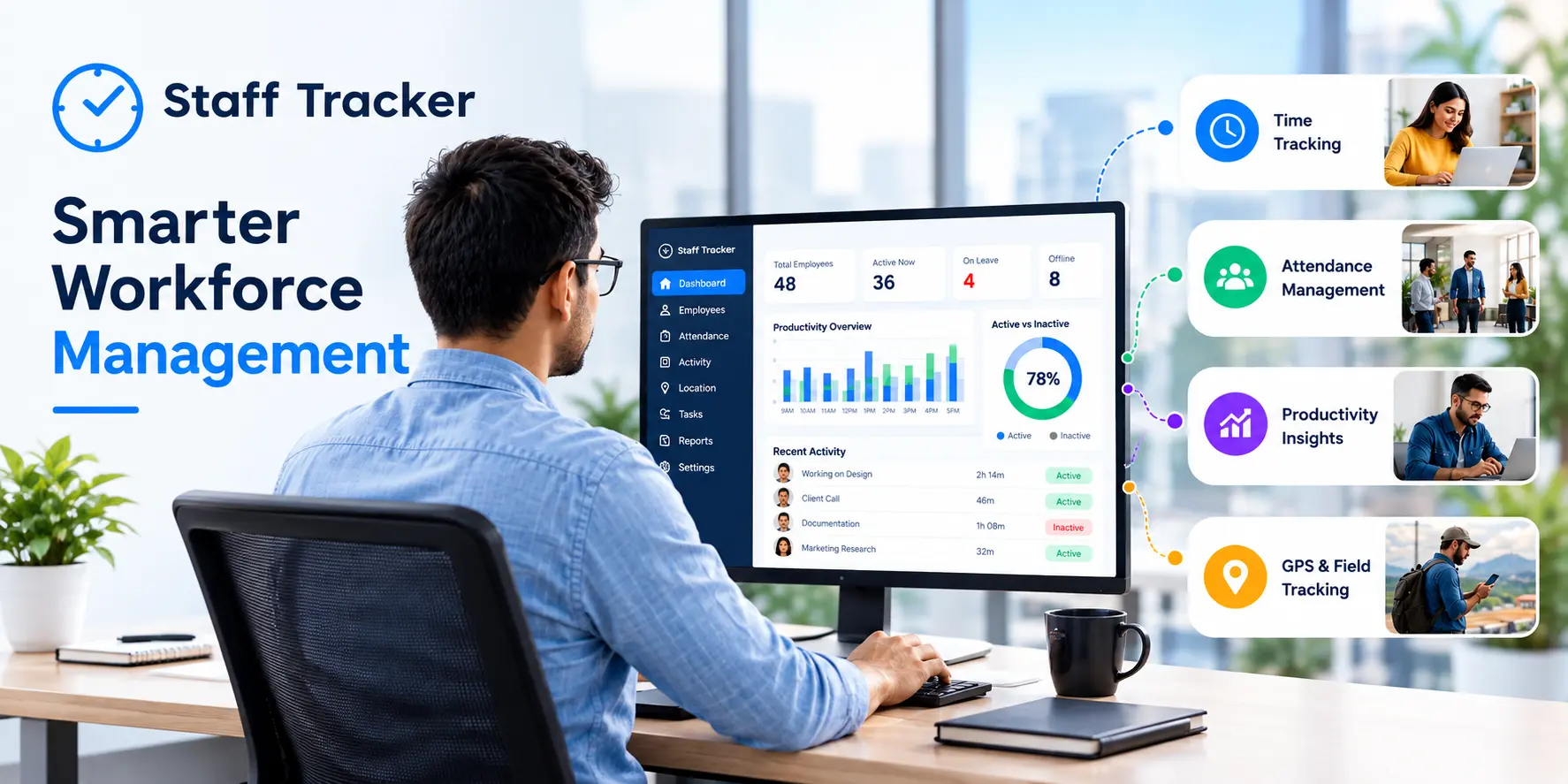
Staff Tracker provides computer activity monitoring while also combining it with attendance, break tracking, and leave management features. This allows a business to review relevant workforce management records all in one place as opposed to several separate programs.
Why Consider Staff Tracker?
If you only need to record your screen, there are likely more affordable or easier-to-use screen recorders available. However, if you need to monitor the computer activity of your employees while also tracking work time, a free screen monitoring program may provide several benefits for your business.
With Staff Tracker, businesses can utilize the following features:
- Screenshot tracking: See visual confirmation of computer activities.
- Computer activity history: View available application and browsing history.
- Work-time reports: Review active/inactive time and break records.
- Attendance and leave management: Keep important workforce management details together in one place.
- Activity reporting: Take advantage of available application usage, computer browsing history, and activity reports to investigate business patterns.
Each of these features can assist managers and supervisors in identifying areas that may require improvement, particularly with how tools are being used to complete tasks and how work schedules are progressing.
However, it's important to remember that these tools should provide additional context to conversations with employees as opposed to being the sole determining factor of an issue.
Is Staff Tracker Free to Use?
Staff Tracker has listed a Basic/Trial option at ₹0 for one user for one month. Features include screenshot tracking, active/inactive time tracking, break tracking, attendance/leave management, application and browsing history, and activity reports.
A free trial is always a good way to see how such software can benefit your business before committing to a subscription, although a free trial should not be considered an unlimited free plan.
Before registering for a free trial, be sure to review the user limit, duration of the free plan, features included, and any report restrictions.
You can learn more about current options on the Staff Tracker registration page.
How to Get Started
Using the following steps can assist you in determining if Staff Tracker is a good fit for your business:
1. Register: View the Staff Tracker website and check out the available trial.
2. Set up the software: Install the application and verify that it is compatible with your PC.
3. Choose the features you need: Determine if you need access to screenshots, application history, browsing records, and/or work-time tracking.
4. Review the reports: Identify patterns and insights that could benefit your business.
5. Adjust your approach: Keep only the monitoring practices that serve business purposes.
It's good to begin with a few relevant features as opposed to collecting all available information, as this makes it easier to identify what monitoring tools can benefit your business.
How to Choose the Right Free Screen Monitoring Software for PC

It's important to identify exactly what you would like to achieve.
- For recording your own screen: A free screen recorder may be sufficient.
- For capturing employee screenshots: Look for software with configurable screenshot capture and access restrictions.
- For tracking application and website activities: Be sure that the tools include the activity history required.
- For remote team management: Consider a program that includes monitoring and attendance/work-time tracking.
- For business use: Evaluate user limits, data security, access restrictions, data retention policies, and upgrade costs.
The best software isn't always going to be the one with the most features. It should be the one that gives you information without requiring unnecessary expenses or complexity.
A Note on Employee Privacy
Before implementing new monitoring practices, it's important to discuss what will be captured, when it is captured, and why it's needed with your employees.
Limit access to the monitoring tools and records to those who need it, protect sensitive information as required, and make sure to follow appropriate data-retention practices in accordance with relevant laws and regulations.
Most importantly, do not judge an employee based on screenshot records or idle time reports. Completed tasks, work quality, teamwork, and business results also need to be taken into account.
Final Thoughts
The best screen monitoring software depends on what a person or business needs. If you only need to capture screenshots on occasion, a screen recorder may be sufficient. If you need to capture and review employee computer activity while also tracking their working hours, a screen monitor may be a better fit.
Staff Tracker combines screenshot tracking, application and browsing history, work-time tracking, attendance, and reporting for businesses managing remote or hybrid teams.
You can view more details on the Staff Tracker registration page to see if it fits your business needs.
People Also Ask: FAQs
1. What is the best free screen monitoring software for PC?
The best solution depends on what you need the software for, as a free screen recorder works well for personal use, recording your screen, but businesses managing employees will need to look at screenshot tracking, application history, and work-time reports. Staff Tracker has workforce management features that may be of interest, although this depends on its current trial options.
2. Can I monitor employee computer activity for free?
Some employee monitoring applications offer a free plan or trial, but this will often come with limitations on the number of employees, features, or duration of use. Before deciding on a service, be sure that it offers the features you need, such as screenshot tracking and application history.
3. Can screen monitoring software take screenshots automatically?
Some screen monitoring applications can take screenshots automatically based on a configured interval or according to their features. Be sure to review the capabilities of such software to see how screenshot capturing works and who will have access to the records.
4. Is employee screen monitoring legal?
Employee monitoring laws can vary depending on your location, so it's important to review the applicable privacy and employment laws in your area. Where required, inform your employees of the monitoring activities and only collect the information needed for a legitimate business purpose. If possible, consult a qualified legal professional if you have any concerns.
5. What is the difference between screen recording and screen monitoring software?
Screen recording software captures video of computer activities, generally as a single file for personal or instructional use. Employee screen monitoring software is geared toward viewing employee activities, and often has features such as screenshots, application tracking, work-time reports, and other relevant information. The best option depends on whether you need to capture a video of your own activities or if you need to monitor a remote employee's computer activities.
Written by the Staff Tracker Team
This content was authored by the Staff Tracker team who has lots of experience managing the workforce as well as tracking time and attendance and employing HR Technology. Staff Tracker creates content that is practical and speaks to the pain businesses have with optimizing workforce operations and improving productivity in the business.
 07-10-2026