A simple app on every employee's PC.
Employees press Play, Pause and Punch Out, and always see their timer, their status and when the last screenshot was taken. It is the one place where tracking starts.
Interactive preview. The demo clock runs faster than real time.
Nine parts, each one clear.
This is the real app window. The parts light up one after another. Pause it, or pick any part yourself.
Visible to the employee. The timer, the status and the last screenshot time are always on screen. Use monitoring with employee notice.
From the first click to Punch Out.
Watch the day play out, or pick a moment. The app changes on the left, and the screen managers look at changes on the right.
Press Play to start tracking.
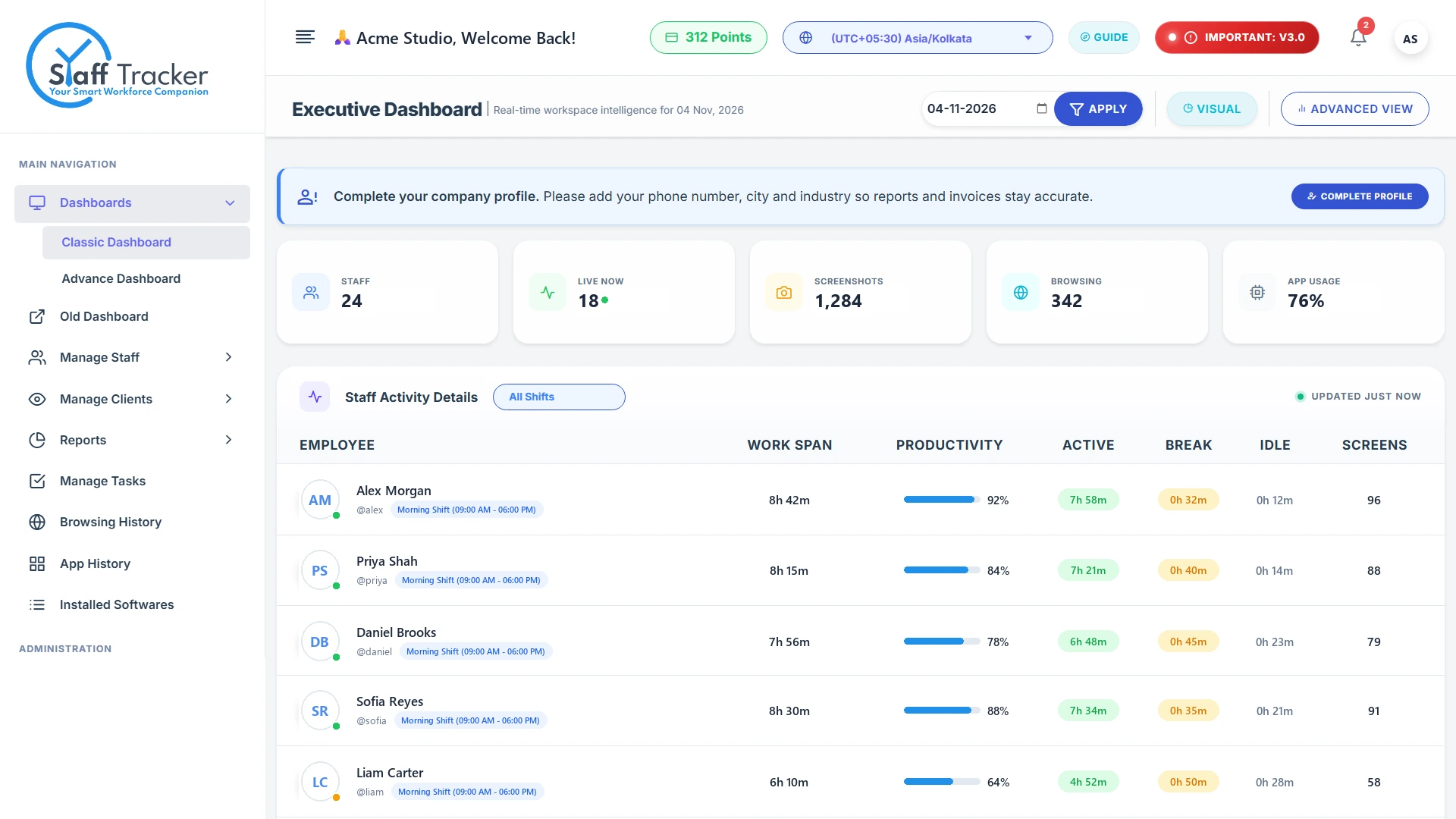
The employee opens the app and presses Play. The timer starts, the status reads Active, and the manager sees the person as live on the executive dashboard.
Work is recorded as it happens.
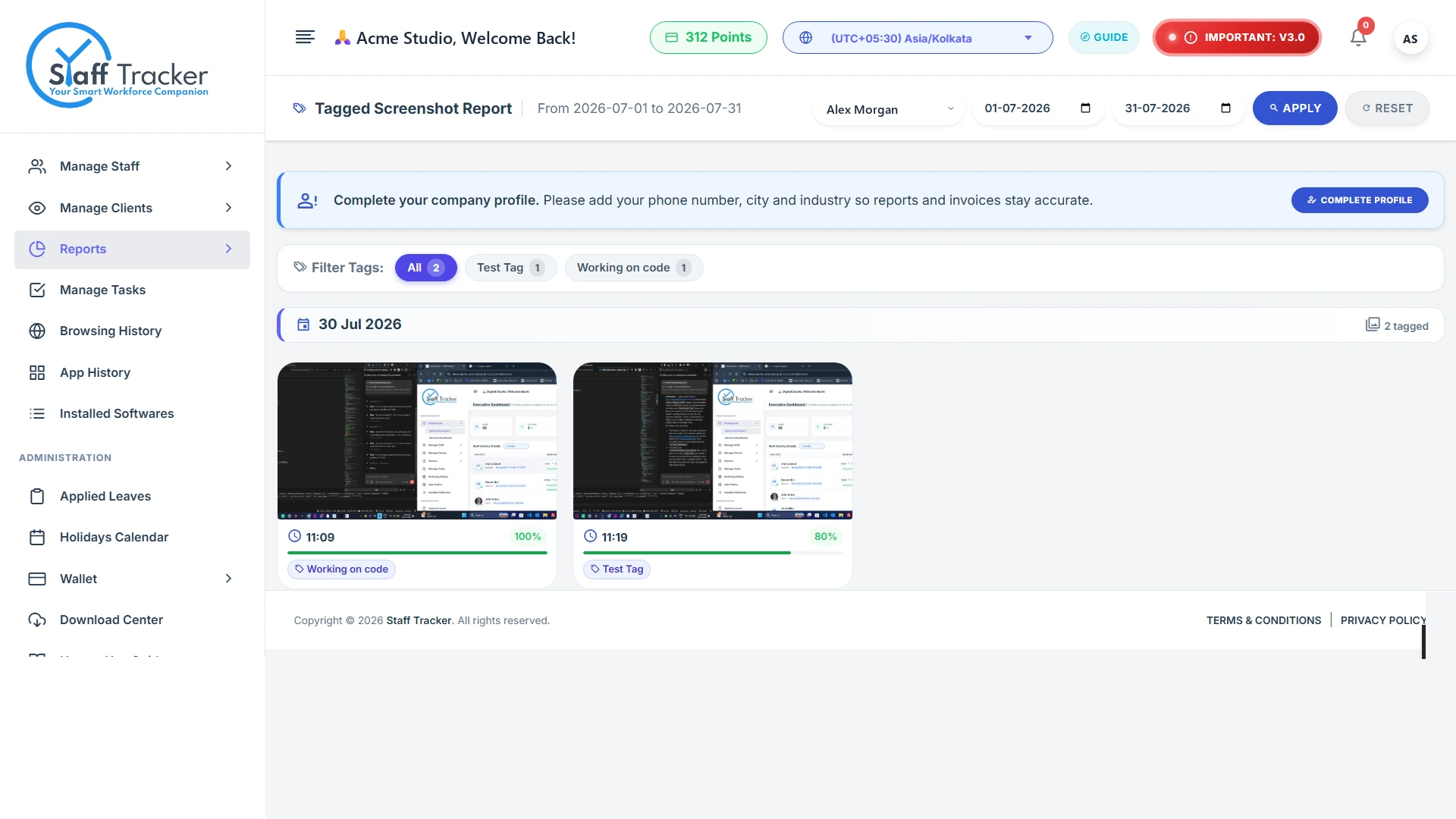
While the timer runs, screenshots are captured and the app always shows the time of the latest one. Managers can filter them by tag and date, with an activity level on each.
Pause for a break.
Play/Pause stops the work timer, and the status reads Paused. Break time is counted separately, so it never inflates active time.
Punch Out ends the session.
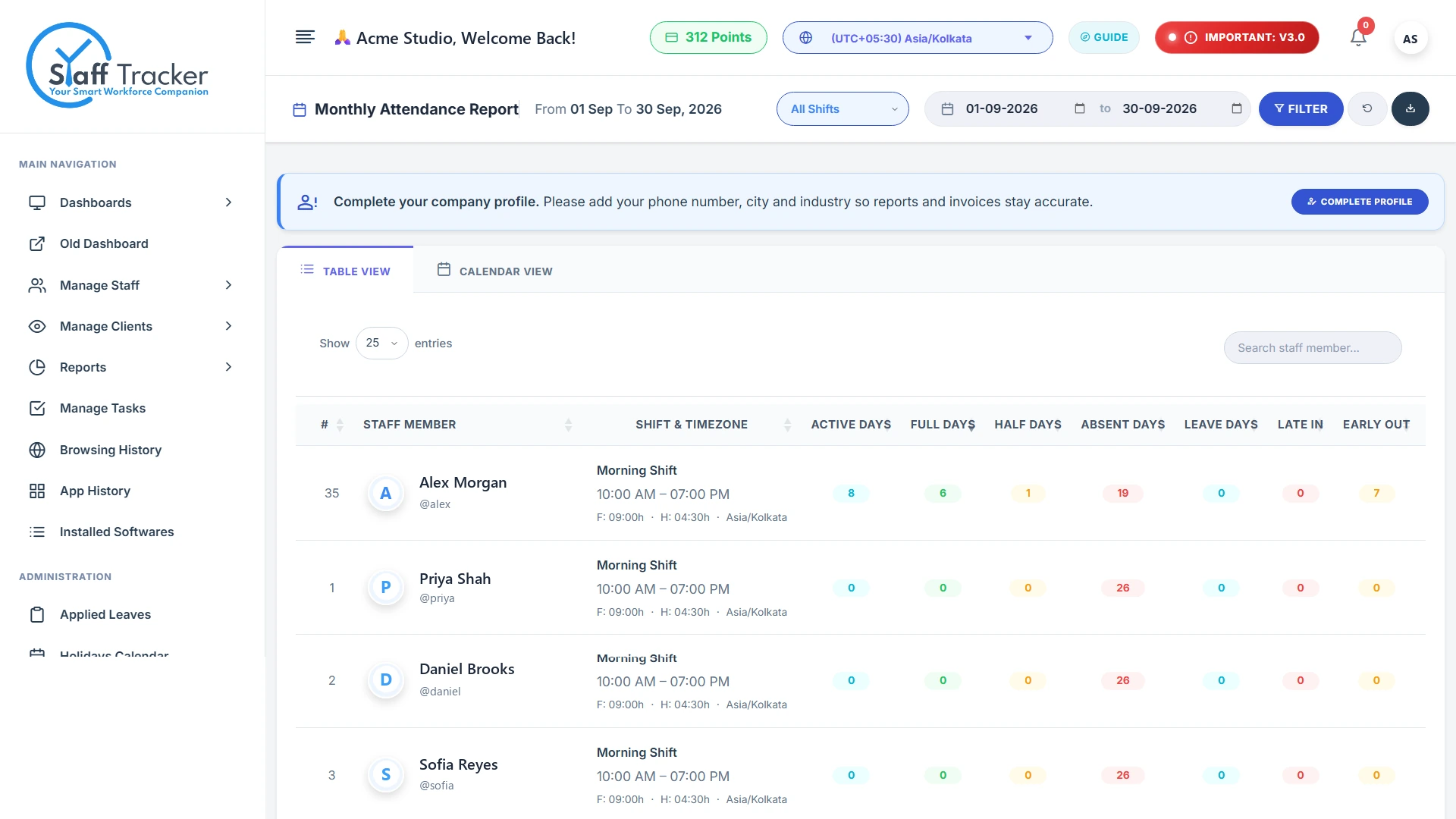
The status reads Punched out and the session closes. Every punch feeds the monthly attendance report, with late-ins and early-outs counted for you.
Up and running in four steps.
Scroll down and the steps tick themselves off, or tick them yourself. The Basic plan is free, and the desktop app comes from the Download centre.
Ask your team to sign in on their PCs and press Play.
Start free- Step 1Create your account
Register your organisation and choose a plan, including Free at $0.
Register - Step 3Install the desktop app
Download it from the Download centre and sign in on each PC.
Download centre - Step 4Track and review
Employees run their sessions. Managers review attendance, activity and reports on the web.
See all features
Questions, answered.
Our team will help you install the app and get your first PC tracking.
Contact supportIt runs on an employee's PC and provides Play/Pause and Punch Out, a live timer and status, the last screenshot time, an idle timeout setting and a start-on-startup option.
Yes. The desktop app shows the timer, the tracking status and the time of the last screenshot. Use monitoring with appropriate employee notice.
Download it from the Download centre, then sign in on each PC with the staff account you created.
Android app access is available with the Premium plan. See the Android app page for details.
All of them. The Basic plan is free at $0, Standard is $5 and Premium is $10 per user per month.
Put the app on your first PC today.
Register your organisation, add your team and install the desktop app. The Basic plan is free.