The executive dashboard is where owners and managers see the whole team at a glance. It is the first screen after you log in.
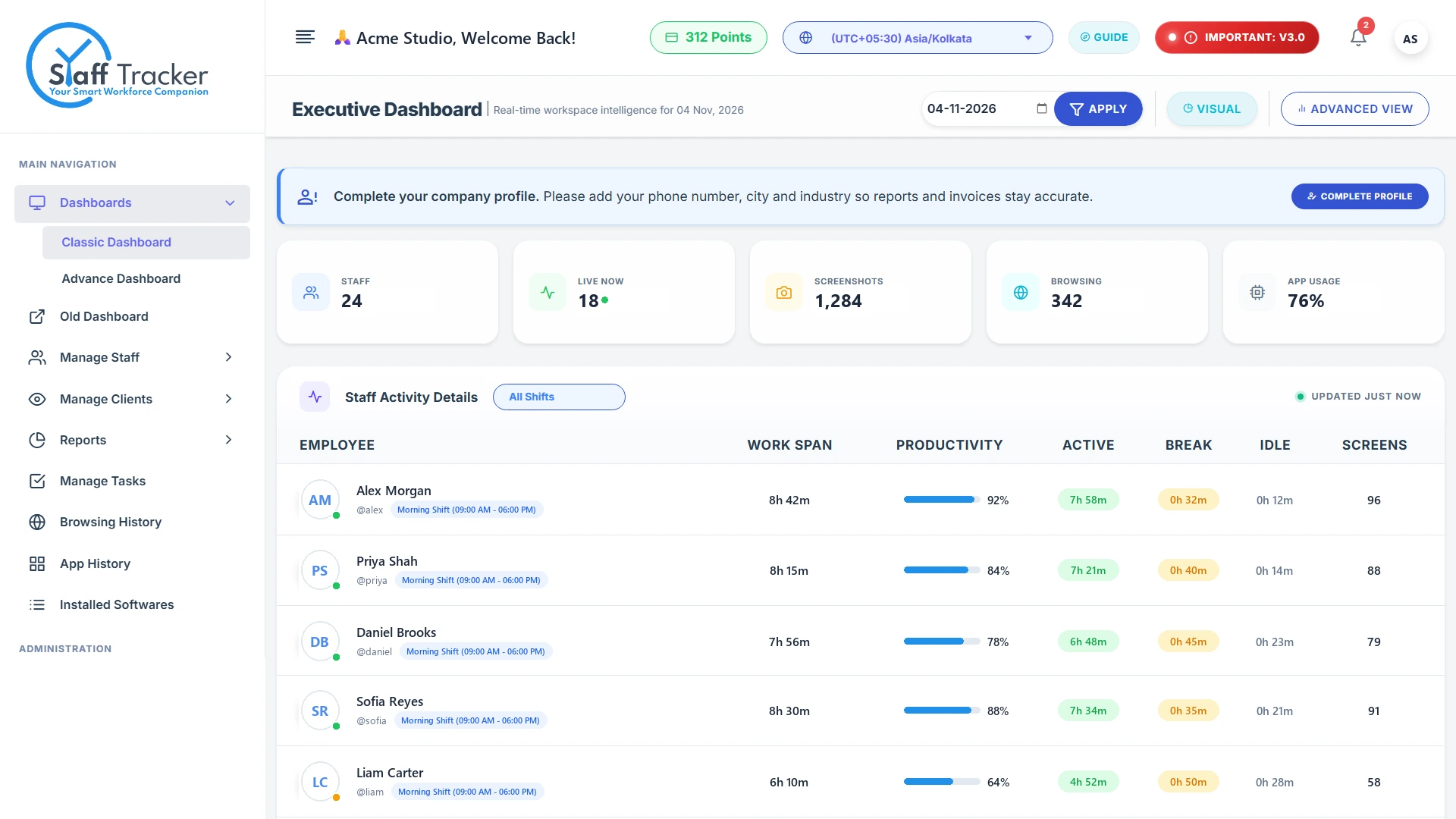
One table with every employee
Each row is an employee. For the selected day you see:
- Work span
- Productivity
- Active time
- Break time
- Idle time
- Screenshots captured
Use the filters to focus on one date or one shift, for teams that work different hours.
Live status
The status next to each employee tells you who is working right now.
- Active (pulsing green): working in the desktop app right now.
- Break (grey): paused the timer.
- Idle (red): started the day but is not working.
- Absent (amber): has not punched in today.
The activity timeline
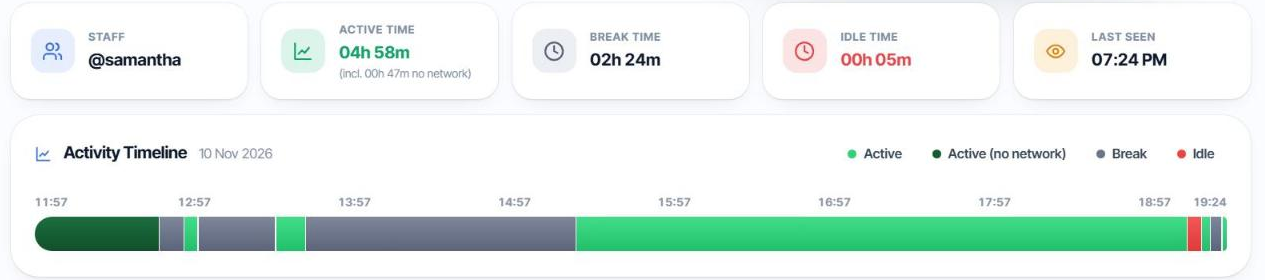
Open an employee to see their day as a timeline of colour blocks: active, active (no network), break and idle. Hover or tap a block to see its time range, the number of websites and the number of applications used in that period. The totals for active, break and idle time are shown above it, with the time they were last seen.
Go deeper
Attendance, leave and holidaysMonthly attendance built from punches.Read
Screenshots and activityHow tracked time was used.Read
Tasks and analyticsCompletion for any date range.Read
Was this article helpful?
More in Dashboard & reports
Add and manage staffCreate a login for each employee and keep your staff list up to date.3 min read
Attendance, leave and holidaysMonthly attendance built from punches, applied leaves and the holiday calendar.4 min read
Screenshots, apps, websites and softwareSee how tracked time was used: tagged screenshots, application and browsing history, installed software.4 min read