The desktop app is where tracking starts. Employees press Play, Pause and Punch Out, and always see their timer, their status and when the last screenshot was taken.
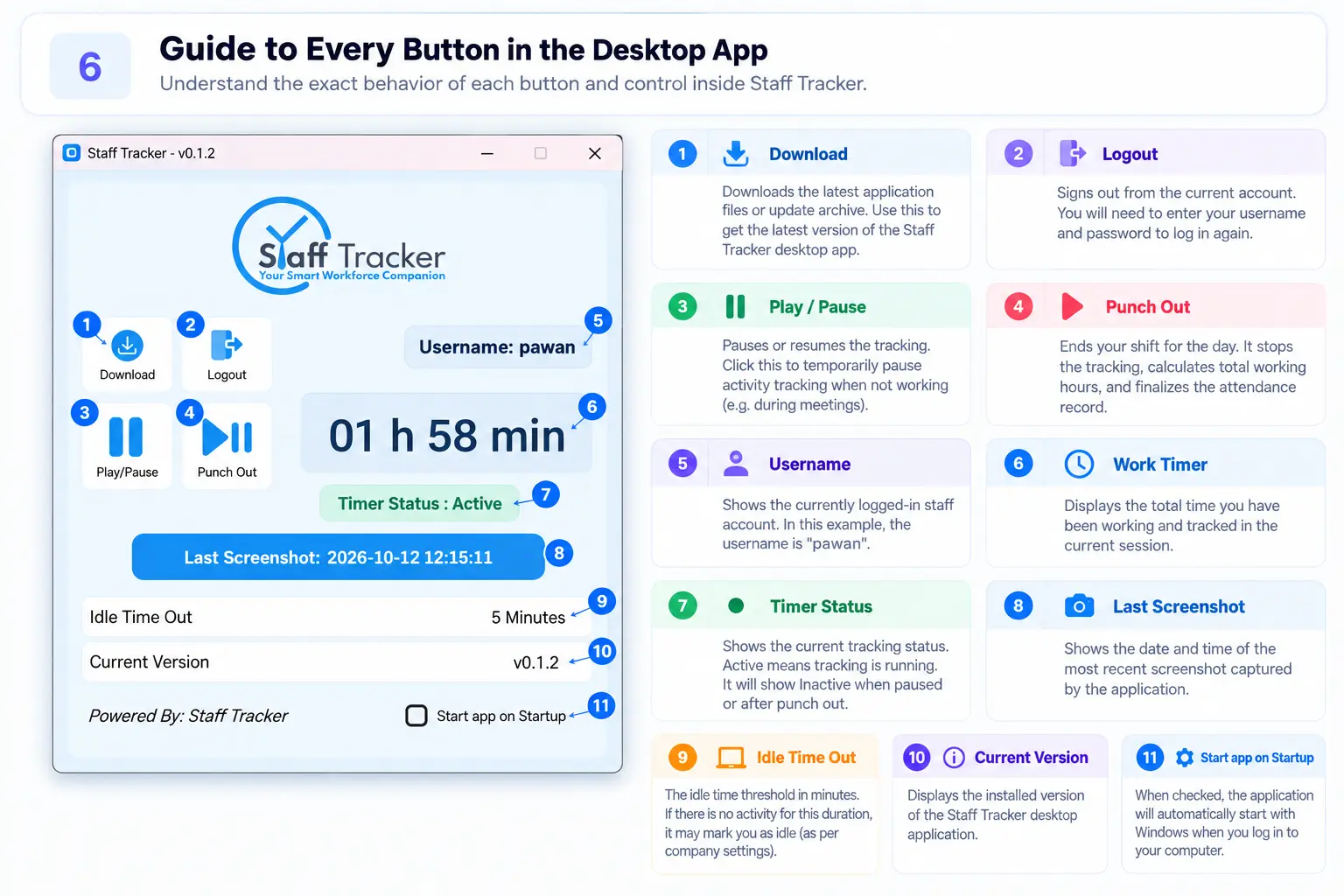
What is in the window
| Part | What it does |
|---|---|
| Username | Shows which employee is signed in on this PC. |
| Logout | Signs the employee out of the app. |
| Play / Pause | Pauses and resumes the work timer, for example for a break. The button changes shape to show what comes next. |
| Punch Out | Ends the work session for the day. Attendance is built from these punches. |
| Timer | The time worked in the current session, in hours and minutes. |
| Timer Status | Shows Active, Paused or Punched out, so the employee always knows whether tracking is running. |
| Last Screenshot | The date and time of the most recent screenshot. |
| Idle Time Out | The idle limit for tracking, for example 5 minutes. Idle time is shown separately in the activity timeline. |
| Start app on Startup | A checkbox that opens the app when the PC starts. |
A normal day
- Start the day
Open the app and press Play. The timer starts, the status reads Active and the manager sees the employee as live on the dashboard.
- Work
While the timer runs, screenshots are captured and the applications and websites in use are recorded.
- Take a break
Press Pause. The time is recorded as break time. Press Play to carry on.
- Finish
Press Punch Out to end the day. Punch in and punch out times feed the monthly attendance report.
Active, break, idle and no network
- Active: the timer is running and the employee is working.
- Active (no network): the timer is running but the PC has no internet. The time is still counted and is marked so you can tell.
- Break: the employee paused the timer.
- Idle: no activity for longer than the Idle Time Out.
The same colours are used in the executive dashboard.
Everything is visible to the employee. The timer, the status and the last screenshot time are always on screen. Use monitoring with employee notice.