This is the shortest path from nothing to your first report. Each step links to the full guide.
The 8 steps
- Create your account
Pick a plan (Basic is free), verify your email and set a password. Create your account and log in.
- Add your staff
In the dashboard, open Manage Staff → Add Staff and create a login for each employee. Add and manage staff.
- Download the desktop app
Open the Download centre and click Download Desktop App. The file is a
.zip. - Extract it
Right-click the zip, choose Extract All… and pick a permanent folder such as
C:\StaffTracker. - Open the app
Double-click the Staff Tracker
.exefile in that folder. - Pass the Windows alert (once per PC)
If Windows says “Windows protected your PC”, click More info, then Run anyway.
- Sign in as the employee
Use the staff username and password from step 2, then press Play to start the timer. Using the desktop app.
- Review in the dashboard
Hours, attendance, screenshots and activity appear in the web dashboard. The executive dashboard.
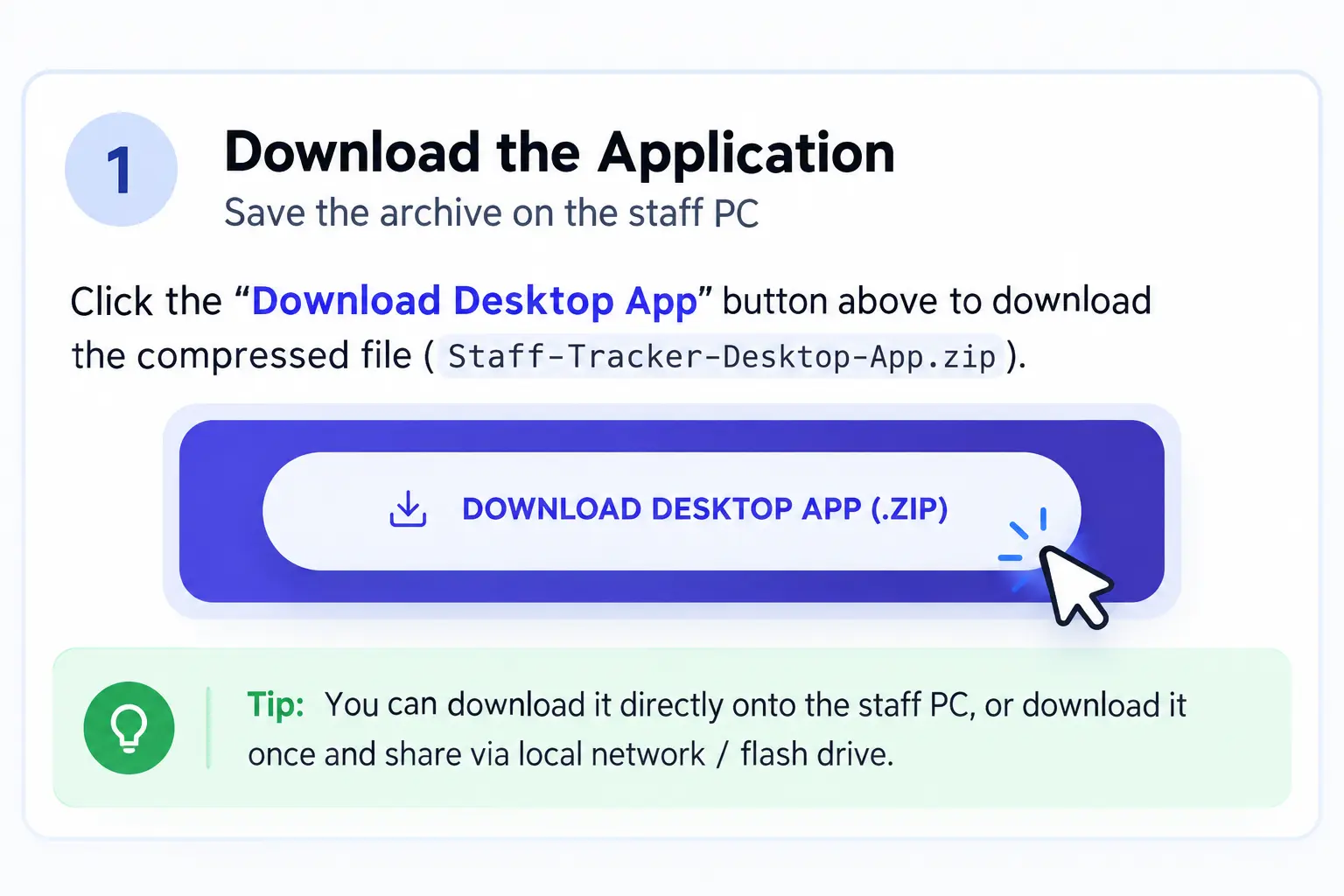
Tip. Download the app once and share it with the office over the local network or on a flash drive. Every PC uses the same file.
Company admin and staff logins are different. The admin login is for the web dashboard. The desktop app accepts staff credentials only.