Do this once on each employee PC. It takes a few minutes. You need a staff login first, see Add and manage staff.
1. Download the app
- Open the Download centre
Log in to your dashboard and open Download Center, or use the public Download centre page.
- Click Download Desktop App
Your browser saves a compressed
.zipfile to the Downloads folder.
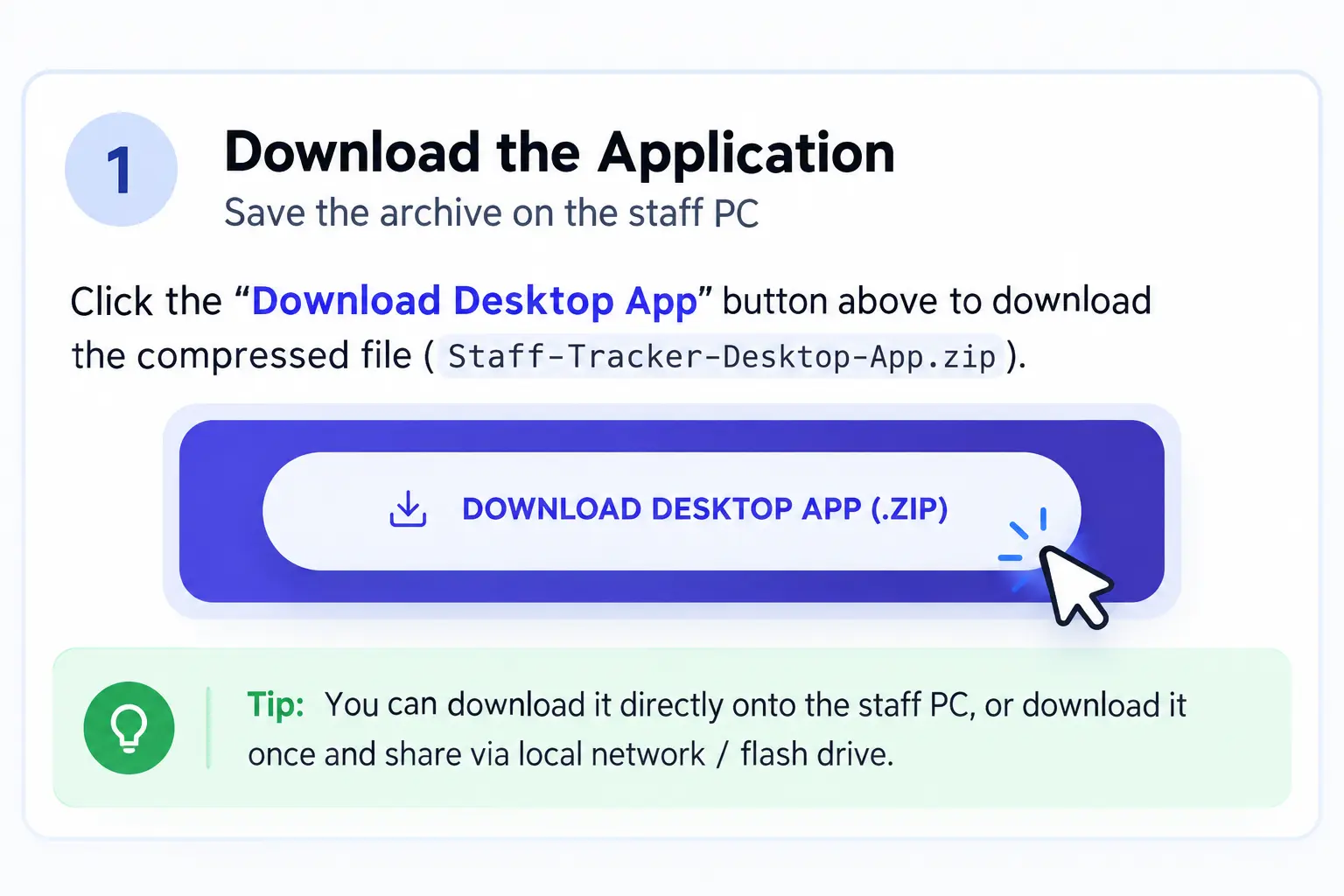
Tip. Download it once and copy it to the other PCs over your office network or on a flash drive.
2. Extract into a folder
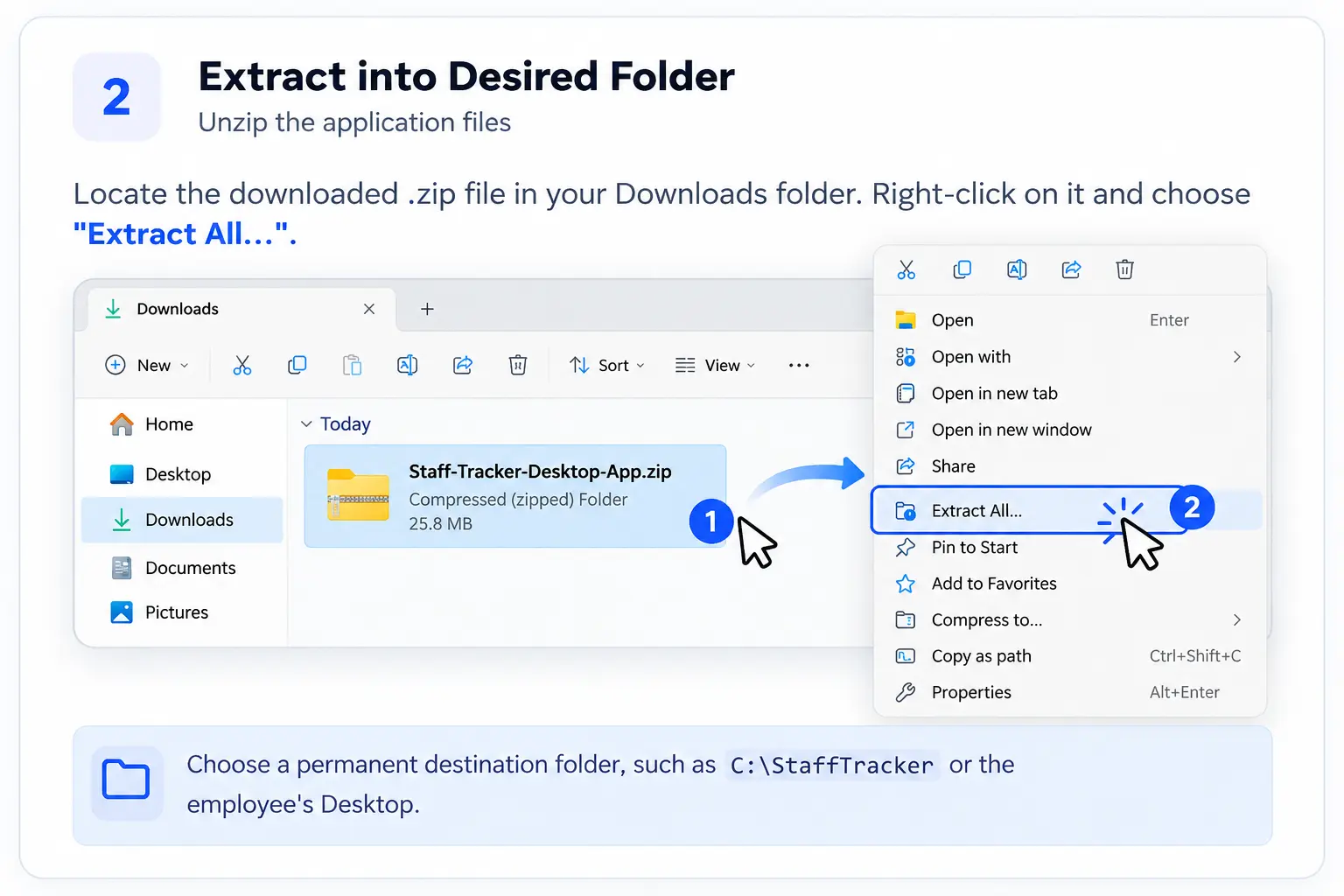
- Find the zip file
It is in the Downloads folder.
- Right-click it and choose Extract All…
- Pick a permanent folder
For example
C:\StaffTracker, or the employee's Desktop. Click Extract.
3. Open the app
Open the extracted folder and double-click the Staff Tracker .exe file. The app opens on the staff login screen.
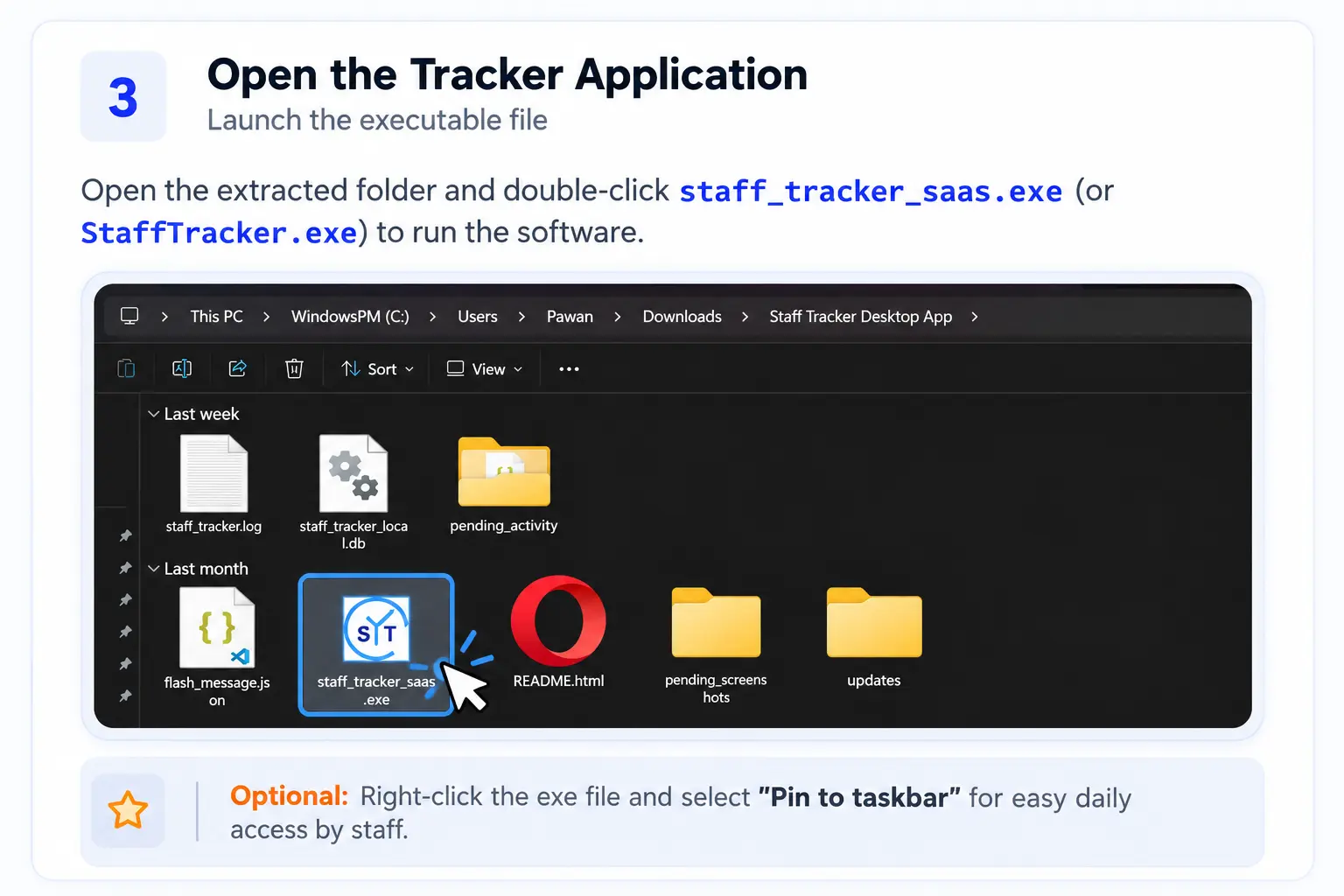
Optional: right-click the .exe and choose Pin to taskbar for one-click access every morning.
4. If Windows shows an alert
The first time the app runs on a PC, Windows Defender SmartScreen may block it with “Windows protected your PC”. This is normal for apps downloaded from the internet that Windows does not recognise yet.
- Click the underlined “More info” link.
- Click “Run anyway”.
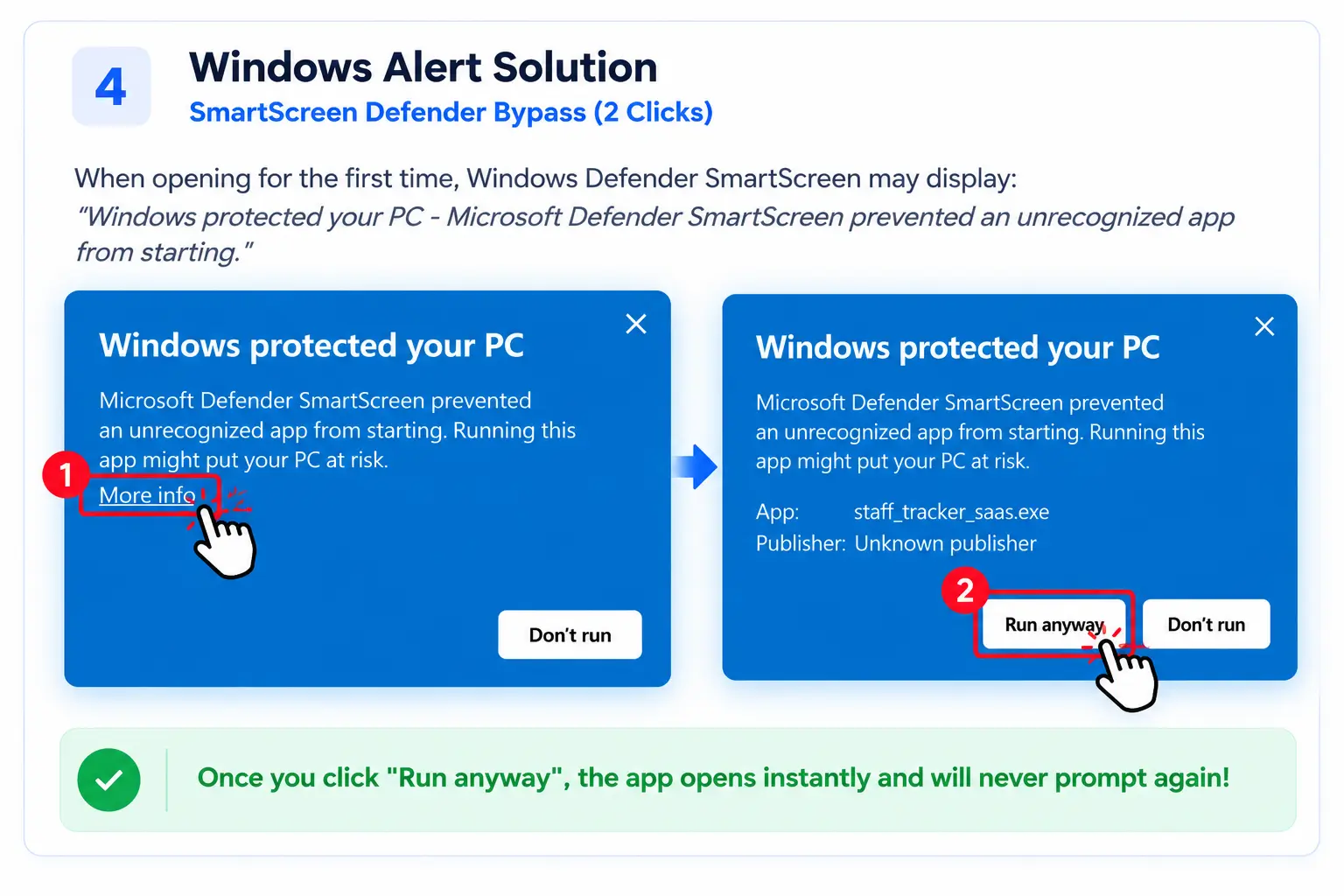
After this, the app opens directly and Windows does not ask again on that computer.
5. Sign in with the staff account
- Enter the username you created for the employee.
- Enter the password.
- Sign in. The app shows the timer window.
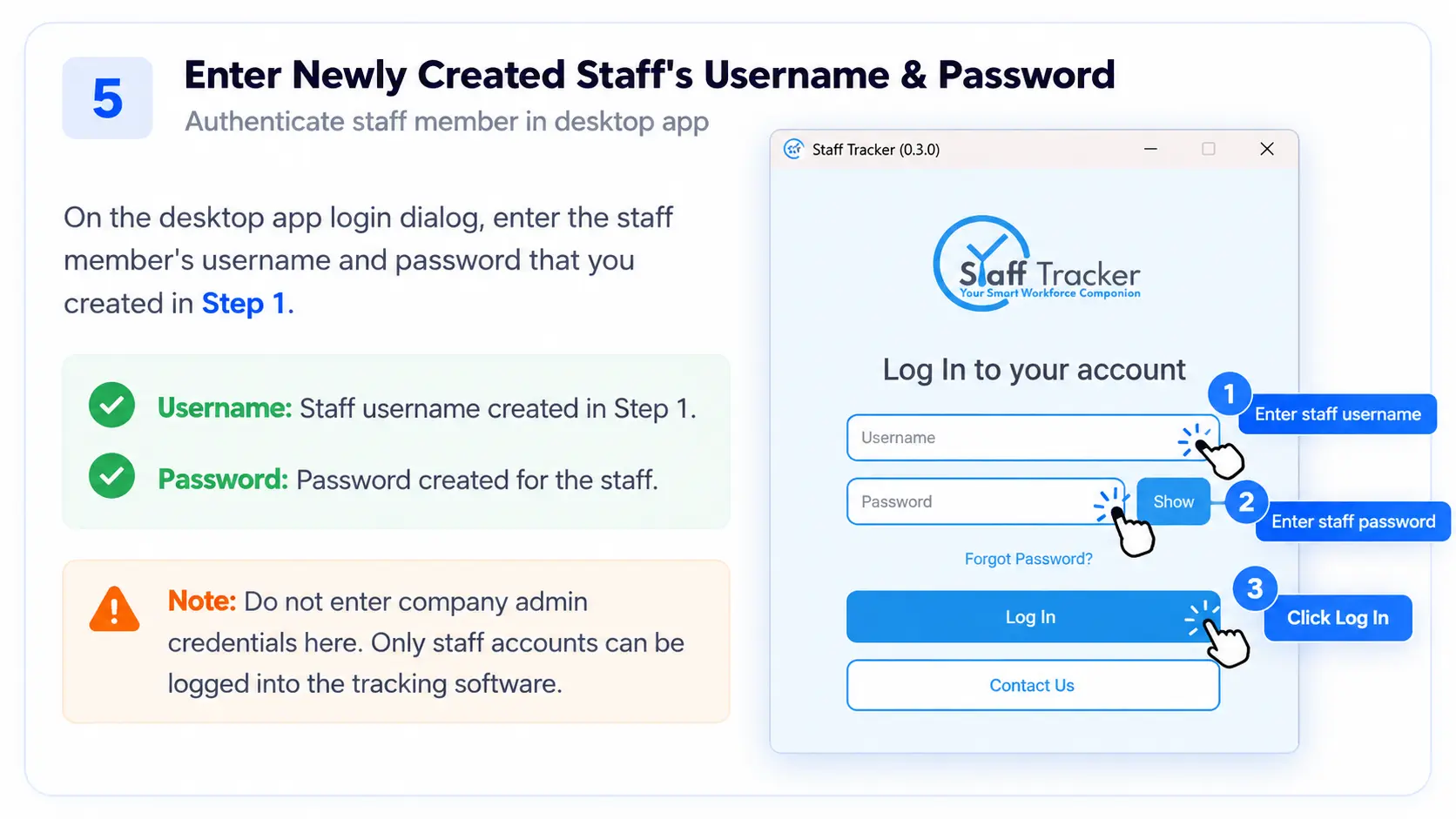
Use the staff login, not the company admin login. The admin login is for the web dashboard. The desktop app accepts staff credentials only.
6. Start with Windows (optional)
Tick Start app on Startup in the app window so it opens when the PC starts and tracking is one click away. Next: Using the desktop app.
Keep it up to date
Always use the latest build from the Download centre. The previous desktop application stopped working with the major release announced on 21 September 2026. See the release notes for what changed in each version.