Screenshots, applications, websites and installed software explain how each tracked hour was spent. They live together under PC activity in the dashboard.
Visible to the employee. The desktop app always shows the timer, the tracking status and when the last screenshot was taken. Use monitoring with employee notice.
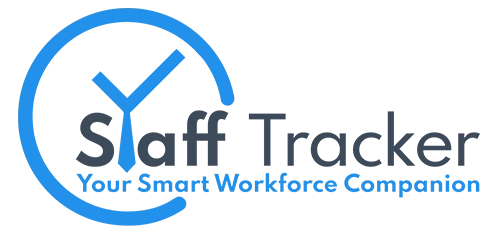
Tagged screenshots
Captures are saved during tracked sessions. Filter them by tag and date. Each screenshot carries an activity level, so you can find the quiet moments quickly.
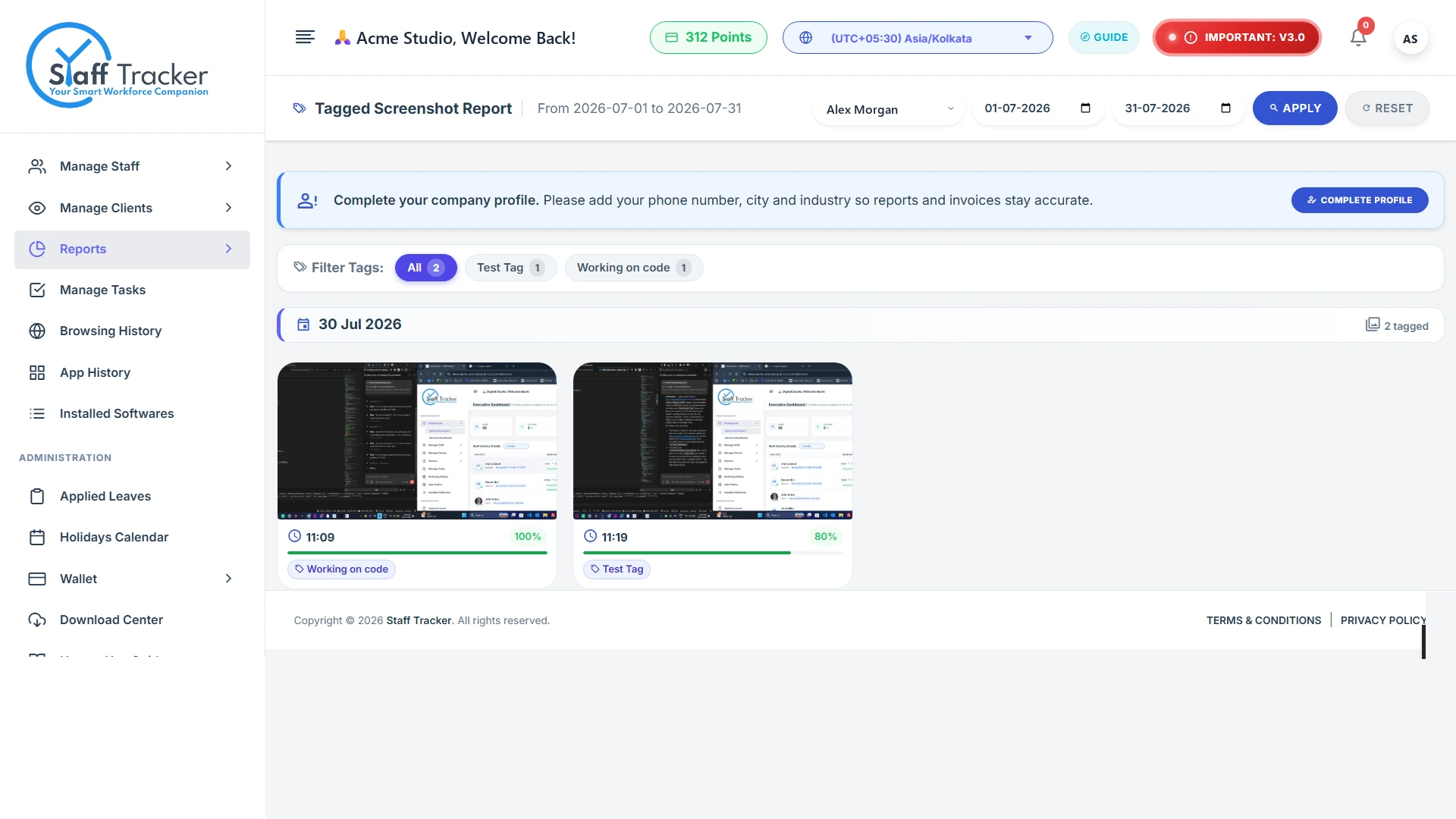
Application history
See the applications each employee used, with the total number of records per person.
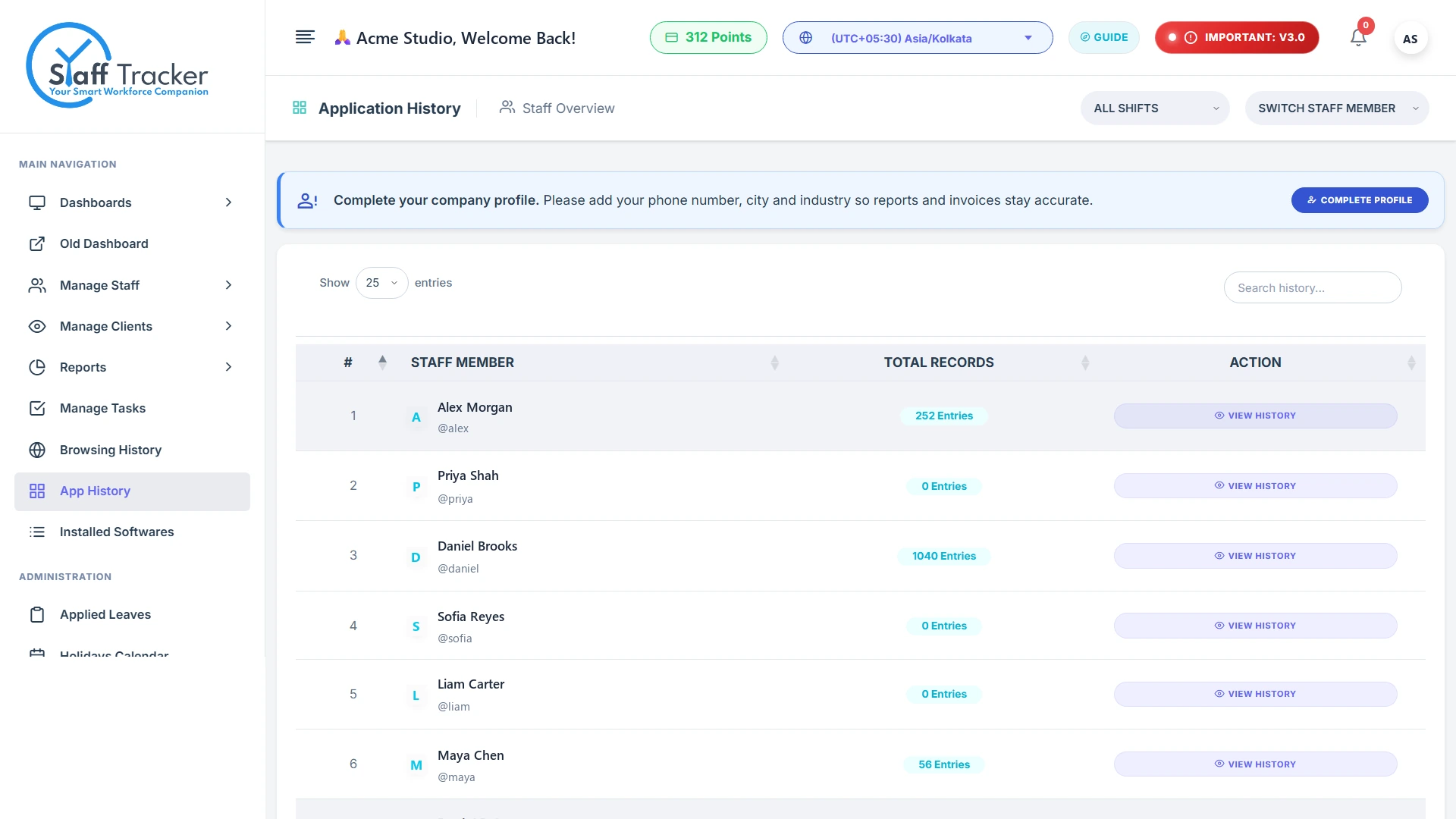
Website browsing
Websites recorded during tracked sessions, per staff member.
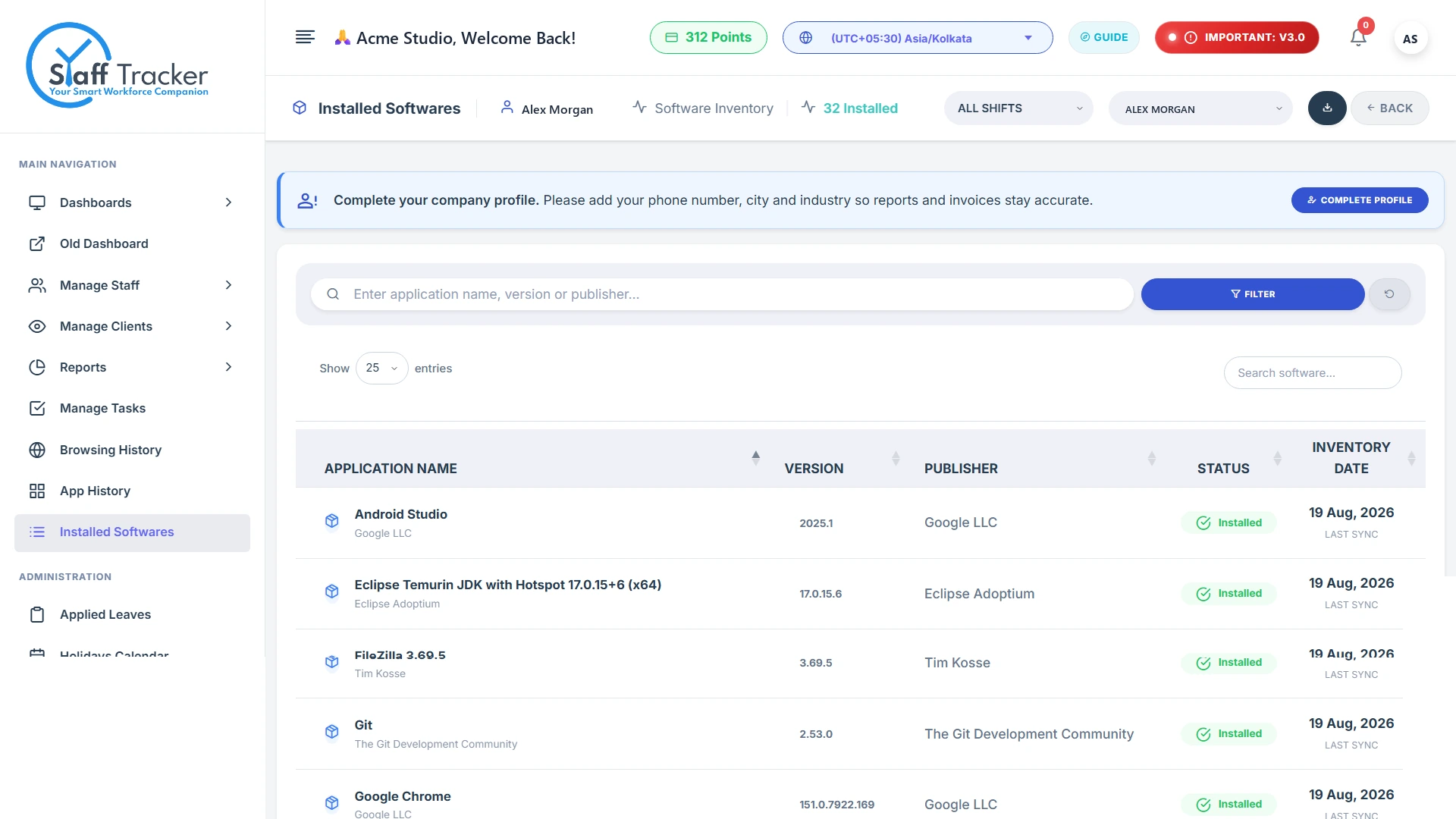
Installed software
The programs detected on each tracked PC.
What depends on your plan
- Screenshots are in every plan.
- Browsing and application history start from the Standard plan.
- How long history is kept: 3 months on Basic, 6 months on Standard, 1 year on Premium.
See Plans, points and pricing for the full table.
Was this article helpful?
More in Dashboard & reports
Add and manage staffCreate a login for each employee and keep your staff list up to date.3 min read
The executive dashboardOne table with every employee: work span, productivity, active, break and idle time.3 min read
Attendance, leave and holidaysMonthly attendance built from punches, applied leaves and the holiday calendar.4 min read