
Every employee who will use the desktop app needs a staff login. You create these in the web dashboard, and you manage the whole list from the same place.
Add a staff member
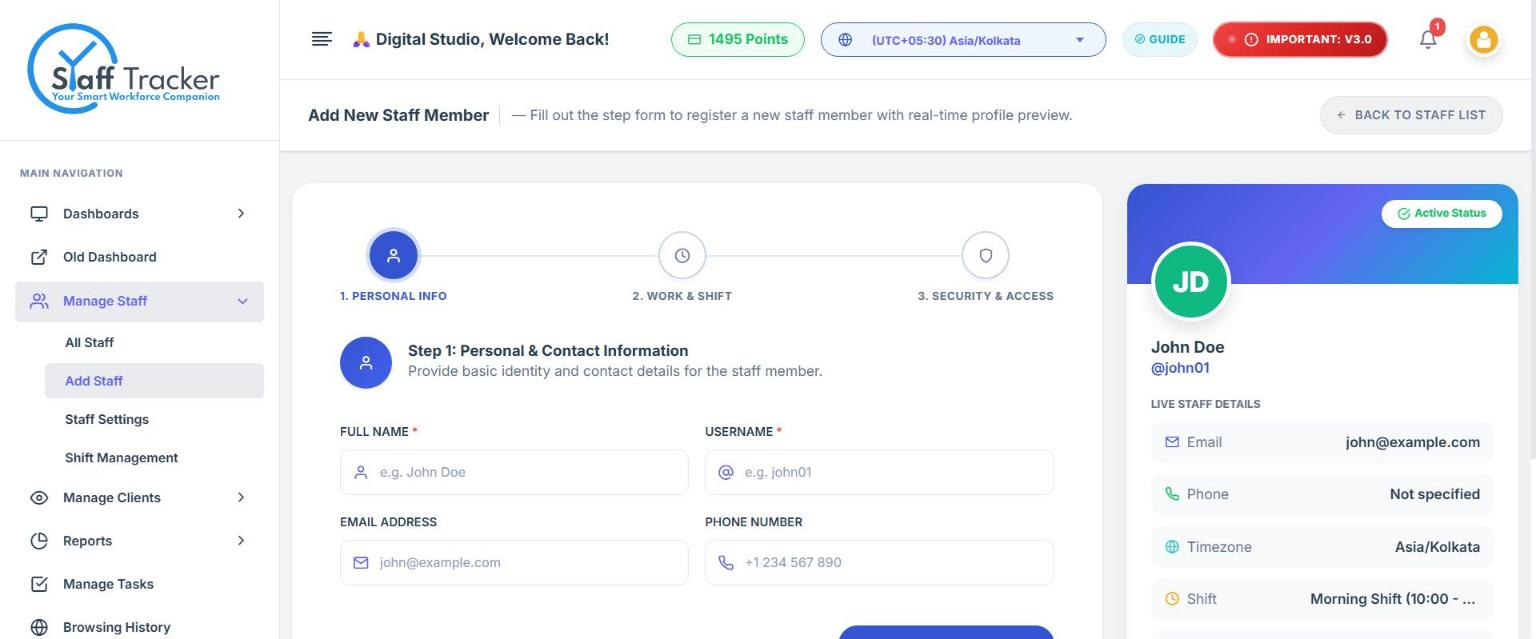
Open Manage Staff → Add Staff in the left sidebar, or click Add New Staff on the staff list. The form has three steps, and a profile card on the right updates as you type, so you can check the details before saving.
Step 1: Personal and contact information
- Full name
Required.
- Username
Required, and it must be unique. The form checks it as you type and shows Username is available in green. The employee uses this username to sign in to the desktop app.
- Email address and phone number
Optional.
- Click Next: Work & Shift.
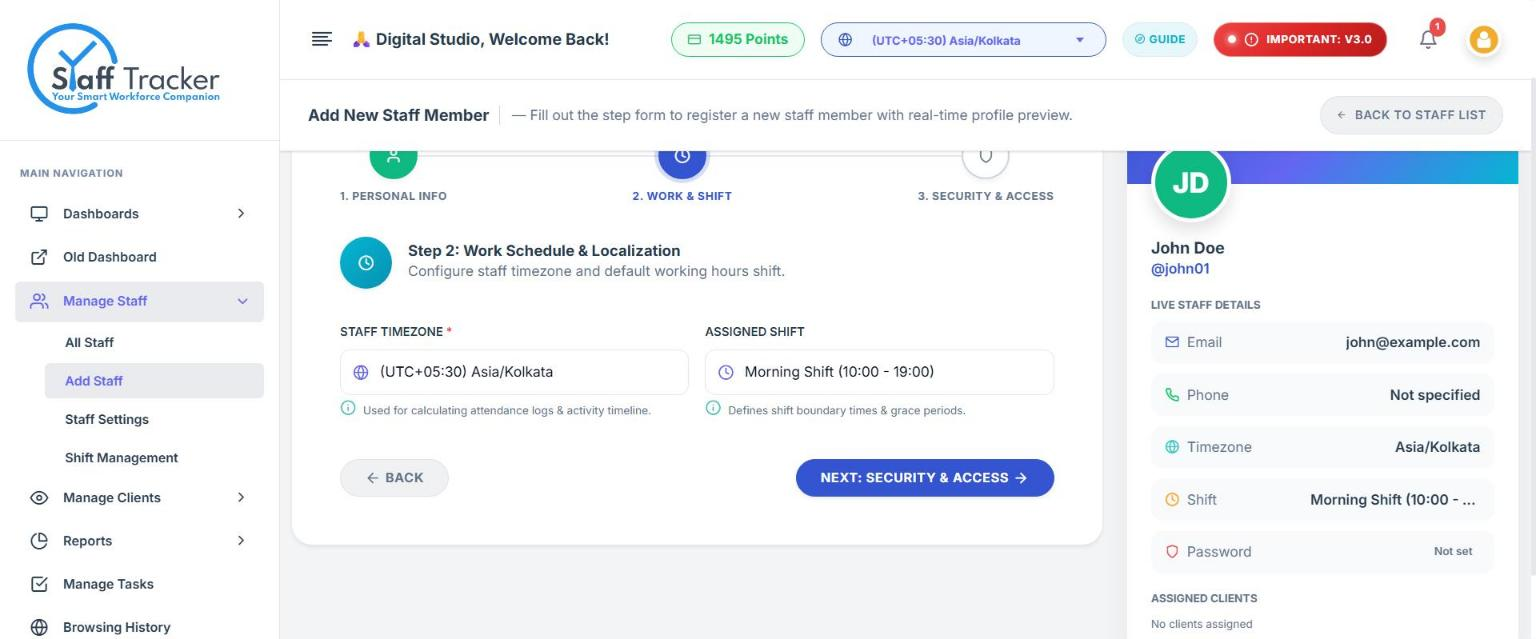
Step 2: Work schedule and localization
- Staff timezone (required): used for calculating attendance logs and the activity timeline.
- Assigned shift: defines the shift start and end times and the grace periods. Manage shifts under Manage Staff → Shift Management.
Step 3: Security and client access
- Password (required): follow the checklist under the box: 8 or more characters, an uppercase letter, a number and a special character.
- Assign to Clients (optional): choose which client accounts may view this staff member's monitoring reports.
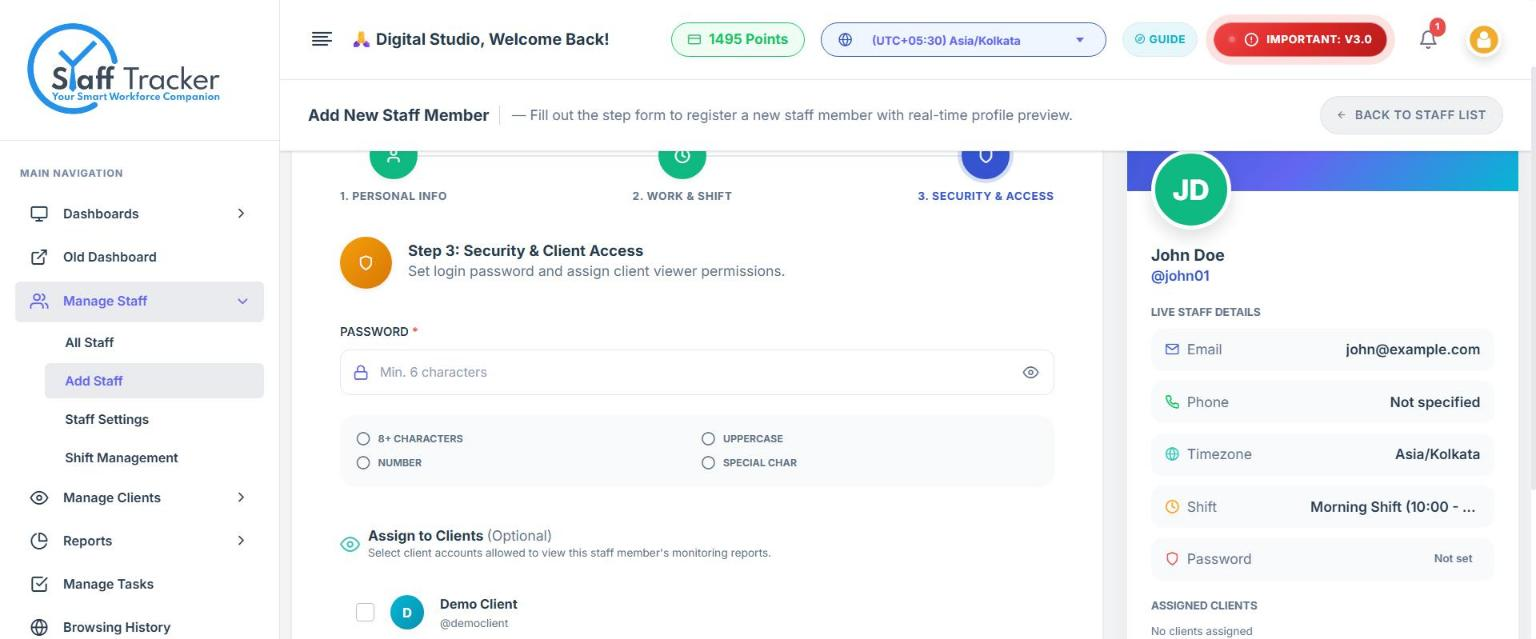
Save the staff member at the end of step 3. The login works as soon as it is saved. Give the username and password to the employee so they can sign in to the desktop app.
Staff and admin logins are separate. Company admin logins are for the web dashboard. The desktop app accepts staff credentials only.
The staff list
Open Manage Staff → All Staff to see everyone in one place.
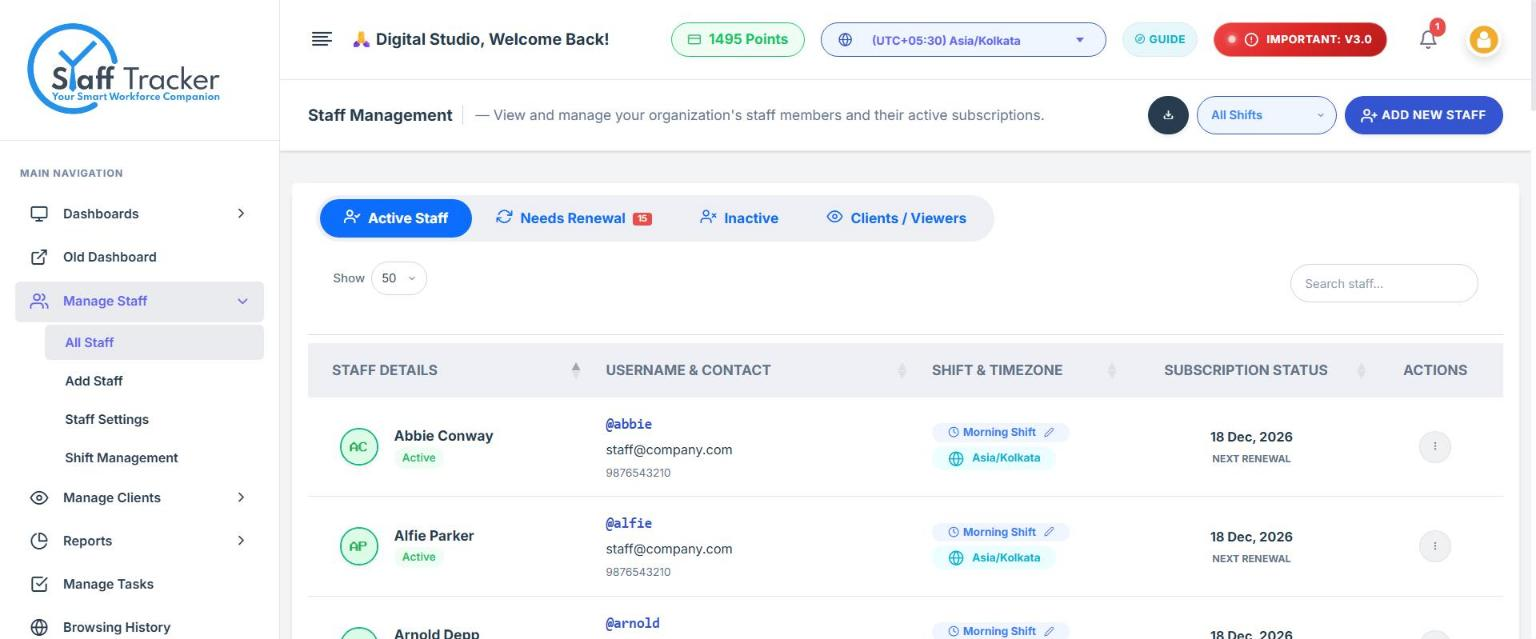
- Tabs: Active Staff, Needs Renewal (with a count of staff whose points are due), Inactive and Clients / Viewers.
- Search by name, and use the All Shifts filter to look at one shift.
- Each row shows the staff details, the username and contact, the shift and timezone (click the pencil to change the shift), and the next renewal date.
- The ⋮ menu on each row has the actions for that staff member.
How many staff can I add?
As many as your wallet covers. Each active staff member uses points, see Plans, points and pricing. If you need more staff, recharge your wallet.